


Reliably Refreshing the WebView2 Control

It seems like such a simple thing: Reloading Web Browser content when a page is already active. Just reload, right! But... it's never quite so simple. There is soft reload and hard reload, and it turns out the WebView2 control does not expose the underlying browser APIs in the same way you might be used to by your browser or DOM APIs. While there's Reload() functionality, there's no direct support for a hard reload that also reloads related resources like images, overriding local and server cache settings.
Specifically the WebView2 control has a CoreWebView2.Reload() method, but it lacks a noCache parameter to completely reload content of the page and all of its dependencies.

Why Hard Refreshes matter
Refreshing content is a common thing that you do in any Web application, but in local desktop applications it's even more important, as many applications render content to local files, and then load those files into the WebView for display as previews or or other Html type views.
For example in Markdown Monster and Documentation Monster I render preview Html to file and then display the Html output in the browser.
But in these specific scenarios typical 'page' updates update the in memory DOM with changes for much faster updates, rather than full reloads from disk.
However, there are a few scenarios that require a full reload of the page and all of its related resources. Specifically there are several operations that drop or paste images into the document and if an image has been changed I want to see the change immediately in the preview. By default Reload() will reload the page, but won't refresh the images so while I can force the refresh of the page content, if the image is already displayed, the changed image will not show up.
Hrmph! 😠
WebView2 Reload()
So the WebView has a CoreWebView2.Reload() method:
var url = WebView.Source?.ToString();
WebView.CoreWebView2.Reload()
If you call Reload() like this you'll find that even the page content sometimes still doesn't refresh - even if content has been changed. This can happen due to target site's cache policy or the browser cache policy with local files or if local files are not properly updating their LastWrite timestamps. Mostly a reload works for content though...
Dependent Resource Refreshing
But much worse is that even if the content page itself refreshes with Reload(), dependent resources like images, scripts, style sheets etc. usually do not.
This can be really annoying if you're using the browser as a previewer. For example, in Markdown editing you might paste an image into the editor and it displays fine. Then you make a change to the underlying image, refresh the browser and... the image does not update which is an annoying fail!
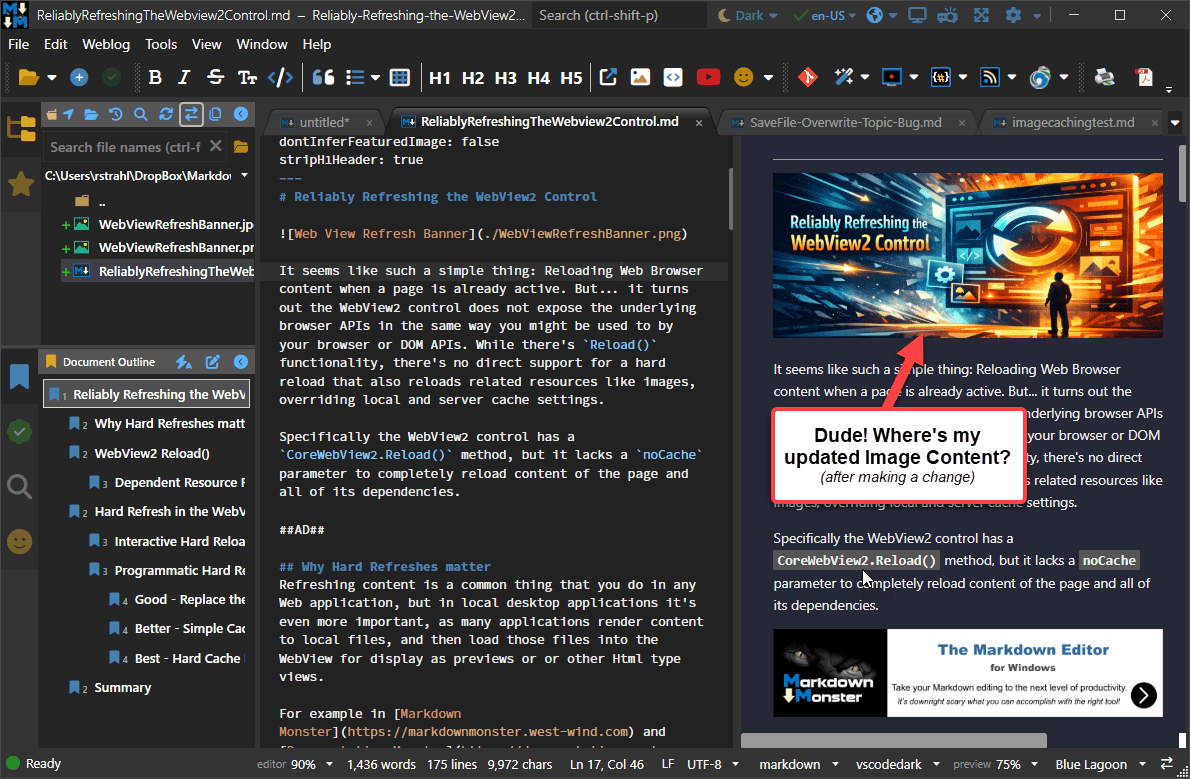
Figure 1 - Markdown Monster images don't update if using only CioreWebView2.Reload().
This happens even if the content page refreshes. Incidentally the same thing happens in a desktop browser, unless you hard refresh. And even then sometimes images do not refresh. But again, Reload() is not a hard refresh so by default support resources and in some cases even the main content do not refresh.

Hard Refresh in the WebView
So how do we do a real hard refresh in the WebView2 control?
Let's take a look...
Interactive Hard Reload with Keyboard Shortcuts
T
he WebView control is essentially a full Chromium instance so it has most of Chromium's native features. This means you can press ctrl-shift-R or Ctrl-F5 to force a hard refresh in the browser - assuming you haven't overridden the key handling in some way in your host application.
It's an easy work around as long as your users are tech savy and do the key gymnastics or you've provided good documentation or visual clues to make the keyboard shortcuts accessible. But shortcuts are always difficult to bring attention to... it's just not very obvious. Obviously! 😂
Programmatic Hard Reload
Which brings us to programmatic solutions to Hard Refreshes that you can attach to commands or event handlers. Programmatic solutions are more explicit and... more obvious.
Good - Replace the Url
For a simple way to force at least the content page to refresh reliably, you can replace the Url and force the page to reload explicitly:
public void Refresh(bool noCache)
{
   if (WebBrowser == null || string.IsNullOrEmpty(WebBrowser.Source?.ToString()))
       return;

   if (!noCache)
   {
	WebBrowser.CoreWebView2.Reload();
	return;
   }

   var orig = WebBrowser.Source;
   WebBrowser.Source = new Uri("about:blank");
   WebBrowser.Dispatcher.Invoke( ()=> WebBrowser.Source = orig);
}
The idea here is that you force the Url to be reset in the control. The Url has to be set to a different value first and then reset to properly log a change so it gets set to about:blank then back to the original Url.
Note that it appears resetting the
WebBrowser.Sourceis cycle dependent which is why I use a Dispatcher in the code above. In my use of this approach I started with two one-after-the-otherWebBrowser.Sourceassignments and that worked most of the time but failed occasionally and unreliably. Using theDispatcherimproved the reliability significantly.
In most situations I've found that this also reloads dependent resources, but I've had reports from a number of users that on occasion they see images not refreshing. Fairly rare though so this seems to corroborate my timing suspicion of the Source assignment.
There are more reliable Reload() solutions, but the reason you might want to use this solution is to avoid blowing out your entire profile cache entirely on a reload as the two following approaches I show next do.
Better - Simple Cache Revocation
The next approach uses the WebView's built in Profile Cache APIs to clear the browser cache to force reloading all content. The WebView.CoreWebView2.Profile.ClearBrowsingDataAsync() method can be used to clear all or select cache items from the active profile.
The code is simple enough:
public void Refresh(bool noCache)
{
    if (WebBrowser == null || string.IsNullOrEmpty(WebBrowser.Source?.ToString())) return;

    if (noCache)
    {
        WebBrowser.Dispatcher.InvokeAsync(async () =>
        {
        	// Hard Repload by clearing the Cache
            await WebBrowser.CoreWebView2.Profile.ClearBrowsingDataAsync(CoreWebView2BrowsingDataKinds.DiskCache);
            WebBrowser.CoreWebView2.Reload();
        }).Task.FireAndForget();
        return;
    }

    WebBrowser.CoreWebView2.Reload();
}
The ClearBrowsingDataAsync() method can be called with no parameters which busts up all cached items, or you can specify which items to remove. For plain page display and related resources you typically only need the Disk Cache to be busted since related resources like images, scripts and style sheets are cached to disk in the WebView's Profile folder.
Note that the ClearBrowsingDataAsync() method is async, and you have to await the method for the cache clearing to complete before you can Reload() the page in order for the hard refresh to work.
I'm using WPF here to go from sync to async using the Dispatcher, but you could also make the entire method async and skip the Dispatcher to make this a little simpler. I'm doing that here because I have an older non-async interface I'm implementing and there's no need to explicitly make the external method async and await the Reload(), since navigation and reloading are inherently not directly awaitable in the WebView (you have to explicitly use events for that).
This method is the safest and most reliable way to ensure the browser and dependent resources are refreshed but there may still be some resources that are not refreshed.
Best - Hard Cache Revoke like Browser Hard Refresh
This brings up to the last approach which is essentially what the WebBrowser users internally and is the closest thing to pressing ctrl-shift-R to force a hard reset.
This solution uses the WebView DevTools API to force a refresh:
public void Refresh(bool noCache)
{
    if (WebBrowser == null || string.IsNullOrEmpty(WebBrowser.Source?.ToString())) return;

    if (noCache)
    {
        WebBrowser.Dispatcher.InvokeAsync(async () =>
        {
        	// Hard Reload the Page
        	if(WebBrowser?.CoreWebView2 != null)
        	{
	            await WebBrowser.CoreWebView2.CallDevToolsProtocolMethodAsync("Network.clearBrowserCache", "{}");
	            WebBrowser.CoreWebView2.Reload();
        	}
        }).Task.FireAndForget();
        return;
    }

    WebBrowser.CoreWebView2.Reload();   // not working reliably if file initial navigate failed
}
The key here is the call to the DevTools protocols:
await WebBrowser.CoreWebView2.CallDevToolsProtocolMethodAsync("Network.clearBrowserCache", "{}");
This CallDevToolsProtocolMethodAsync() API exposes a shit-ton of internal browser functionality via a command interface and Network.clearBrowserCache is one of the simplest ones.
But, there are some limitations to this API: it requires either a visual host running on an STA thread (which is every desktop UI app), or has to be used with a headless host explicitly in non-UI application contexts which is a lot more complicated. If you're in the latter category stick with the ClearBrowsingDataAsync() API instead as that has fewer limitations.
Also Recommended: ClearCache()
Sometimes you may not need to or cannot do a full refresh, but you still want to refresh resources when they are re-rendered. For example, if you use JavaScript to update the DOM with Html you might re-render an image Url where the file has changed in the same way as with a full refresh. If you clear the cache and the DOM re-renders the replaced block of Html it also refreshes the image.
For this reason I also recommend adding an explicit and more obvious ClearCache wrapper if for nothing else than making it more easily visible or because the WebBrowser might be hidden behind an API interface.
public Task ClearCache()
{
	if(WebBrowser?.CoreWebView2 != null)
	   {
		return WebBrowser.CoreWebView2.CallDevToolsProtocolMethodAsync("Network.clearBrowserCache", "{}");
	}
	return Task.CompletedTask;
}
It's a heck of a lot easier to remember to call this ClearCache() method rather than the DevTools API call.
If you're using the Westwind.WebView library and WebViewHandler which is WebView Behavior class that adds many common features and operations to your WebView, you'll find Reload() and ClearCache() methods on that class.
Also Useful For Navigation
The same approaches can also be used for Navigation instead of just for Reload(). You can run into the same cache issues with plain navigation, as resources like images may have been previously rendered in other pages, and if you then load another page with the same image that image may still be coming from cache.
So in my apps I typically also provide a Navigate method like this (use the Hard Refresh option of your choice):
public void Navigate(string url, bool noCache)
{
    if (noCache)
    {
        WebBrowser.Source = new Uri("about:blank");  // force a refresh
        WebBrowser.Dispatcher.InvokeAsync(async () =>
        {
            await WebBrowser.CoreWebView2.CallDevToolsProtocolMethodAsync("Network.clearBrowserCache", "{}");
            WebBrowser.Source = new Uri(url);
        }).Task.FireAndForget();
    }
    WebBrowser.Source = new Uri(url);
}
You can find these methods also as part of the Westwind.WebView library and the WebViewHandler class which includes Navigate() and Reload() methods with various overloads.

Summary
Browser page reloads are common, but unfortunately the WebView2 doesn't make this functionality very straightforward if you need to do a hard reload that refreshes the page and all of its dependencies.
Luckily there are relatively simple workarounds you can use:
- Interact keyboard shortcuts
- Replacing the URL explicitly
(use if you don't want to blow out your entire cache onReload()) - Using
CoreWebView2.ClearBrowsingDataAsync()
(for the most compatible cache busting approach) - Using
CoreWebView2.CallDevToolsProtocolMethodAsync("Network.clearBrowserCache")
(for the most reliable hard cache refresh - but with some environment caveats)
All are simple, but not so obvious solutions and you can choose for your specific scenario.
In my Preview Rendering apps I'm use the Dev Tools approach since I know the Desktop applications have access to the DevTools and because I want to make sure images get refreshed. Finally in my apps all resources are local, and relatively small so blowing the cache is not a problem.
As always I'm writing this down for future reference, since I'm sure I'll come looking for this information again. Maybe you will too...
Resources
 this post created and published with the
Markdown Monster Editor
this post created and published with the
Markdown Monster Editor