


Work around localhost unsecured HTTPS access for Development Sites in Edge

I've run into a lot of problems recently when it comes to accessing local Dev sites for development. The problem is that the browser automatically forces http:// requests to https://. Because this usually happens on a site that does not have a certificate there's a hard SSL page error. And to make things worse there's no longer allows a bypass option on the page that lets step around the issue as you often can with other protocol or certificate based errors.
The cause of this is typically related to an application that locally uses HSTS, which an HTTP security protocol used to force a domain that uses it to automatically redirect http:// requests to https://. This is fine for the application using HSTS because it knows and intends this behavior and as a result likely has a certificate setup both on the live site and is running on https:// locally as well.
But insidiously the HSTS protocol caches and applies itself to the entire domain beyond the lifetime of the running application, and if the domain you are running the HSTS app on happens to be localhost it can end up affecting a whole lot of other things that have nothing to do with HSTS themselves.
Side Effects, Side Effects
HSTS can affect other applicationS on localhost such as other 'dev' servers and locally triggered Web pages like those used for desktop logins for many applications. For example, I ran into problems like the Angular and Vue dev servers which by default do not use https://. If HSTS was triggered and cached say by my .NET application I ran on localhost a week ago, the Angular or Vue local dev server apps will fail to run. They'll redirect to https:// without a certificate and fail. There are workarounds for that by installing addins that provide local certificates and https:// dev server ports, but it certainly is not obvious or built-in.
What's even worse and more disruptive is that many applications these days use a local Web page on localhost in order to handle their OAuth/OpenID Connect authentications. For example, just today I ran into problems with authentication with the Git Credentials Helper, and the Azure Storage Explorer both of which open the default browser with a http://localhost:port address to validate the OAuth token. Both of these fail and become unusable when HSTS is cached on localhost. That sucks!
In short, if HSTS gets enabled on localhost it can affect a lot of other applications that have nothing to do with HSTS.
Causes
Depending on what development tools you use this may or may not be a problem. If you don't use HSTS in your local development it's unlikely this will be a problem. But if you're building .NET applications for example, it enables HSTS by default:
app.UseHsts();
This is fine for .NET server development as you can easily set up local development certificates and install them via the dotnet dev-certs https import command. Once installed https:// connections just work locally using the Kestrel Web server. Unfortunately other tools are not so complete.
By doing the above in your app unconditionally you can inadvertently trigger the HSTS related problems for your entire localhost tool chain. I've done this and have run into a number of problems.
This post describes some of the issues with the requirements that Edge has for using https:// on localhost and for working with https:// requests if you don't have certificate installs and that cannot be easily just ignored in Edge.
Localhost HTTPS Hell
Intially I ran into this problem with my local Vue dev server and there are a couple of problems with the handling the issue. The browser:
- Doesn't allow to override an Invalid Certificate
- Doesn't allow access to a plain
http://localhostURL

No way to Escape from Invalid HTTPS Certificate on Localhost
So my scenario is that I'm working on a local Vue application and when I launch the local Vite server I see this on localhost:
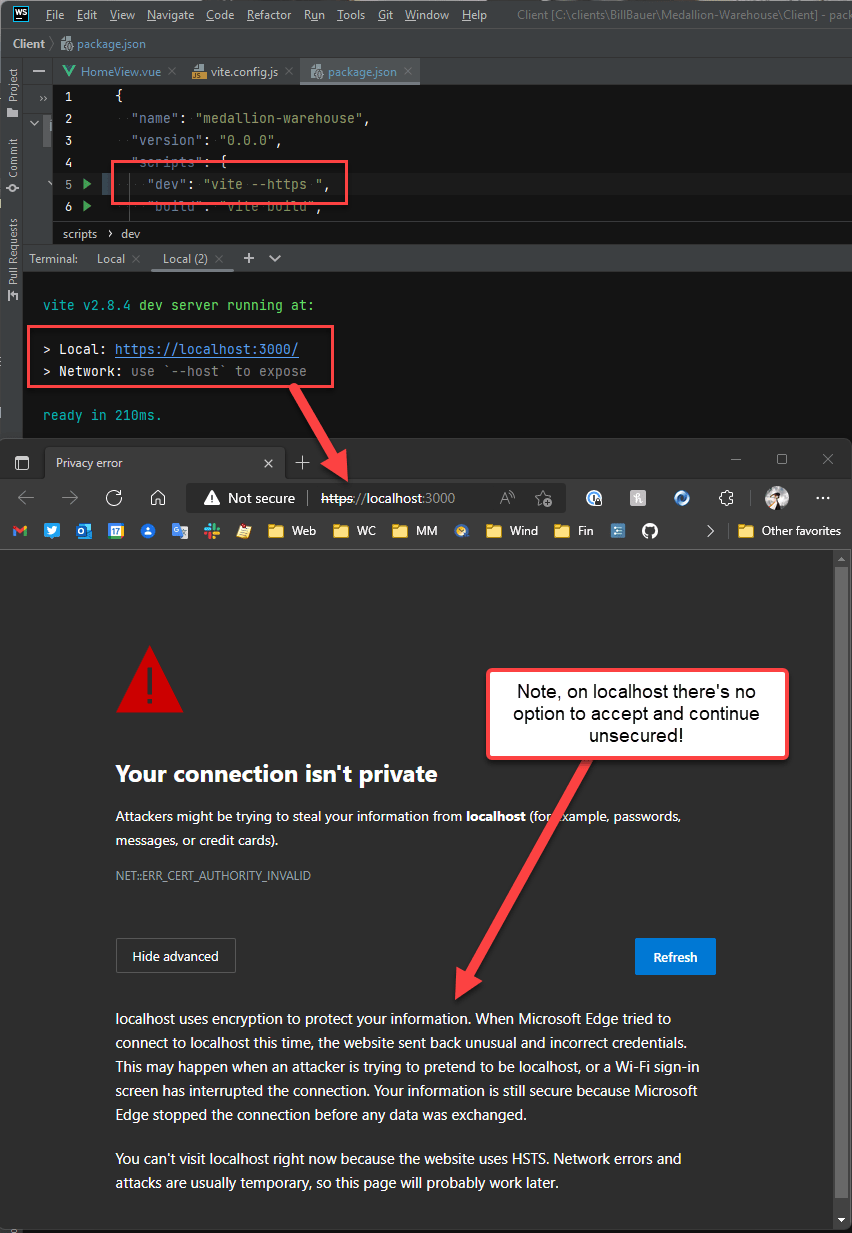
Note that I'm using:
vite --https
Now I don't really need to run in https:// but Edge (and Chromium browsers in general) now automatically redirect to https:// - even on localhost. So --https is essentially required (more on that in a moment).
In effect I have to run the server using https:// but I don't have a certificate and the screen above is what I get in Edge. Now I'm fully aware that there should be a security error since there's no certificate present, but in the past you were able to bypass this error via an advanced options link that explicitly asked, if I'm sure I want to take life in my own hands 😄 :
Yes, damn it! I like to live on the Edge. But Edge won't let me actually live on the Edge (ironic don't you think? 😜) - at least not with localhost.
The https:// certificate behavior on localhost seems to be specific to Edge, as using Brave (another Chromium based browser) I can bypass the invalid certificate via the Advanced options override link. With Brave I can get to https://localhost:3000 without a valid certificate:
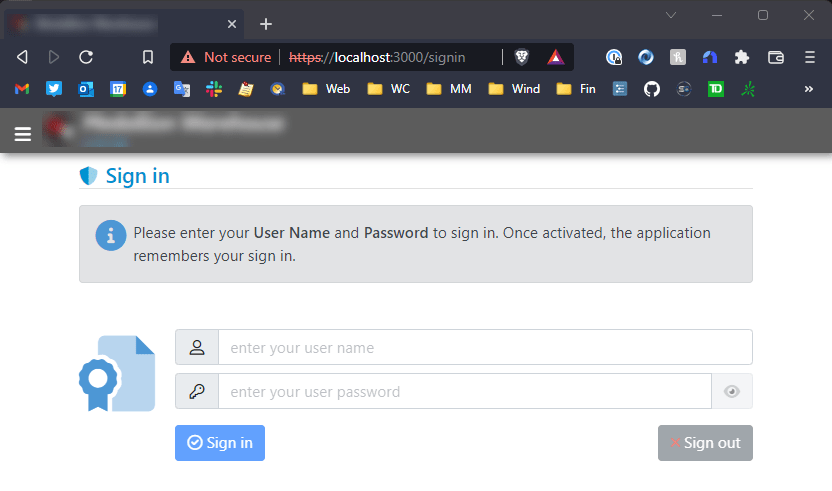
Not so in Edge!
localhost http://' links get forced to https://`
So you might think - screw all this https:// bullshit, lets just use plain old http://. You Heathen, you!
So for the Vite server, if I don't use the --https flag and serve plain http:// content, I have another problem: Going to http://localhost:3000 Edge immediately redirects me to https://localhost:3000 and then fails with a protocol error:
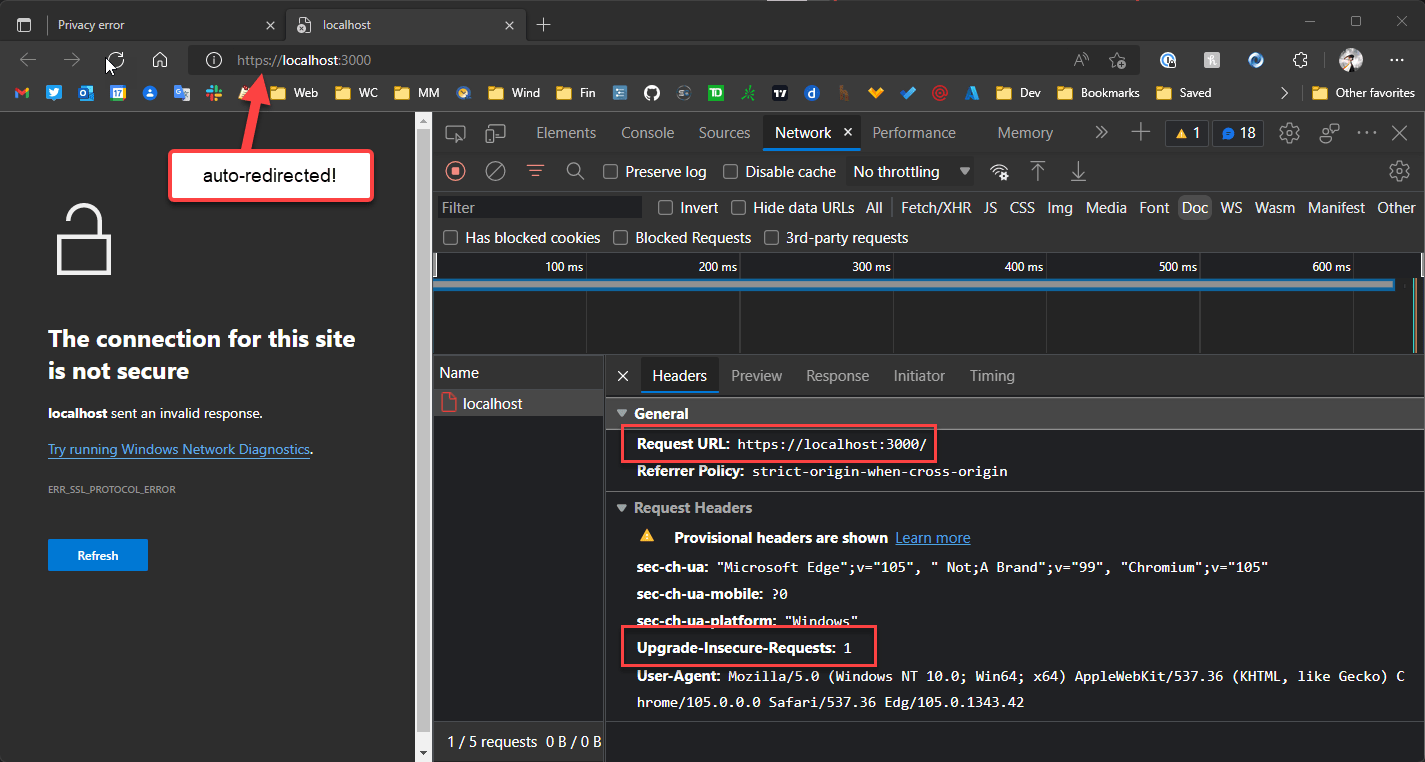
The error makes sense at the https:// link - the server is not serving https:// but Edge insists on going there, and then of course there's no response from port 443.
The point is by default you really can't use http://localhost anymore as Chromium browsers always redirect to https://.
This is the HSTS trap with the cached HSTS headers applying to this non-HSTS site. Are we having fun yet?
Heads you win, tails I lose!
The redirect behavior seems to be common to all Chromium Browsers now (FireFox also) so I think that's something we have to live with (but... why? why? why?).
https://localhost Rant
I'm happy with HTTP for public sites - these days with LetsEncrypt it's easy enough to create a certificate and install it. Fine!
But for localhost it's not quite a simple. Setting up certificates for a local site is a pain - especially for Windows. So why this insistence on making life more difficult when http:// would clearly suffice for a local development setup?
Solved: Clear the HSTS Cache for Localhost
As it turns out this the http:// redirection problem is not a universal problem, but related to a very specific problem with HSTS policy that is applied to all of localhost and cached if an application sets it.
Jesper Blad Jensen pointed this out on Twitter in reply to my post:
Have you tried clearing the HSTS setting for localhost? We have the problem that if just one project running on a port has sent a HSTS header then all localhost gets the https only treatment: chrome://net-internals/#hsts
— Jesper Blad Jensen (@jesperbjensen) September 22, 2022
You need to ensure that edge is completely restarted after.
HSTS is a security policy that enforces certain security defaults including forcing requests from insecure to secure URLs (ie. http:// to https://). But as Jesper points out, the policy is applied to all applications that run on a given domain and - worse - cached!
This means if I run one application that uses HSTS - for example a server side ASP.NET application - it then sets this policy for all of localhost and caches that HSTS policy for all other applications I might be also running on localhost.
This effectively means that my local ASP.NET application just affected the HSTS policy for my local Vue/Vite application, even though the latter never used any HSTS policy settings at all.
Brilliant!
To fix this - again thanks to Jesper's suggestion - you can go to:
chrome://net-internals/#hsts
In the list of settings use the Delete domain security policies. Put in localhost (or any other domain) and press the Delete button:
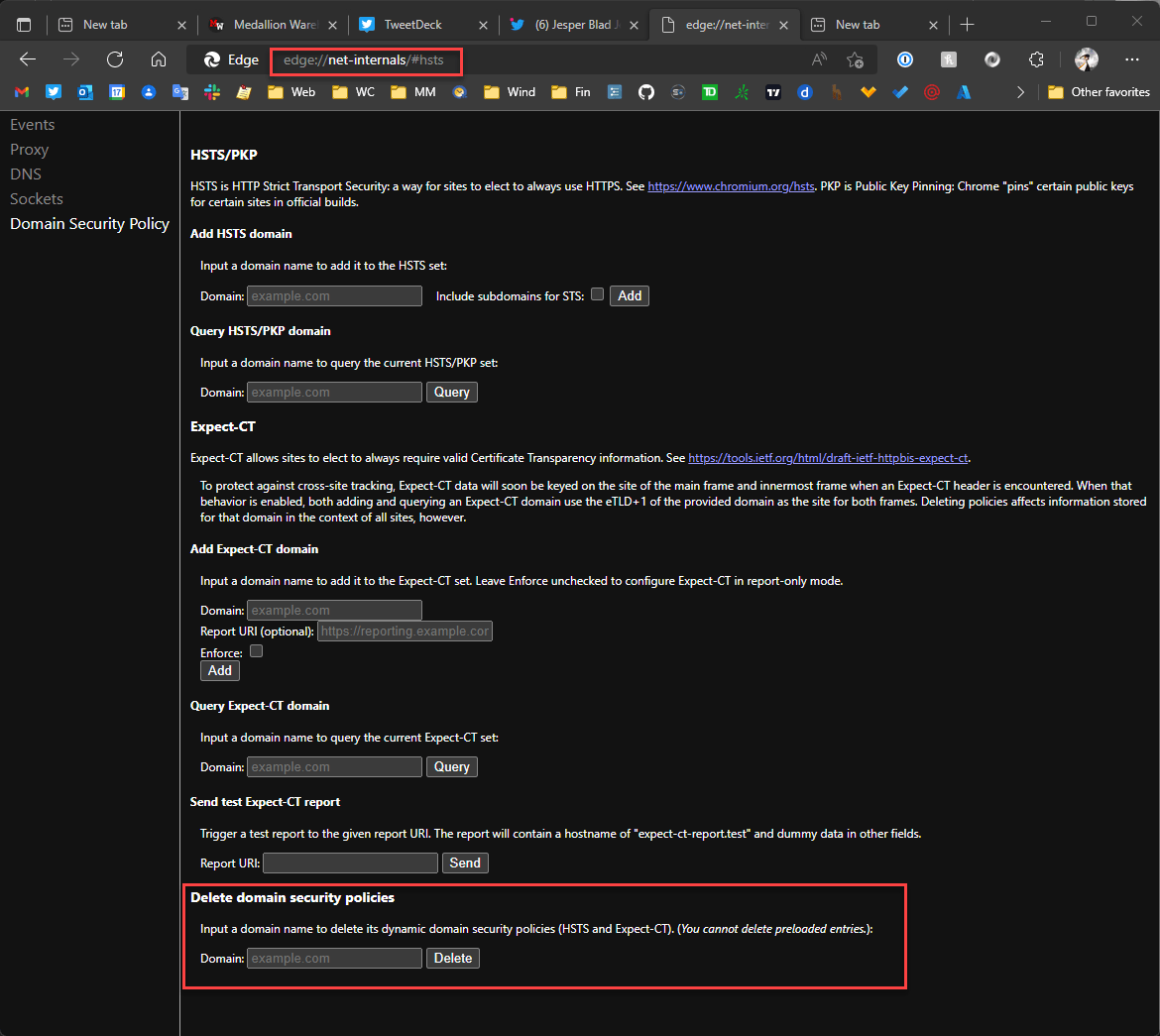
Make sure to restart the browser. And voila - now the http://localhost works just fine.
This seems like a big fat design flaw. HSTS headers should not be cached and certainly not beyond the scope of the active session. The headers can and should be added to each request and then be processed accordingly. Even more appropriately a lot of these types of security (and cookie) policies should not be tied to the domain or worse the root domain, but to a very specific domain and port combination if applied. If caching of any sort is applied specificity should be a priority, but clear it's not in this case.
Ok - problem found and issue solved, but 🤦♂️.
With this in place I could now go back to using https://localhost:3000. But now that we're here, let's see if we can still using https://localhost:3000
Hackity Hack
On getting https:// to work on localhost.
There are a number of approaches that you can take which break down into two groups:
- Bypass security and allow an invalid or missing certificate
- Install an actual certificate
Edge: Use an explicit local IP Address
As mentioned Edge appears to not allow you to override invalid or missing certificates on localhost. Oddly it appears that Edge does allow other URLs than localhost to override an invalid certificate. If I run vite --https --host 0.0.0.0 which allows me to connect to a the local IP address, I can then bypass the HTTPS certificate:
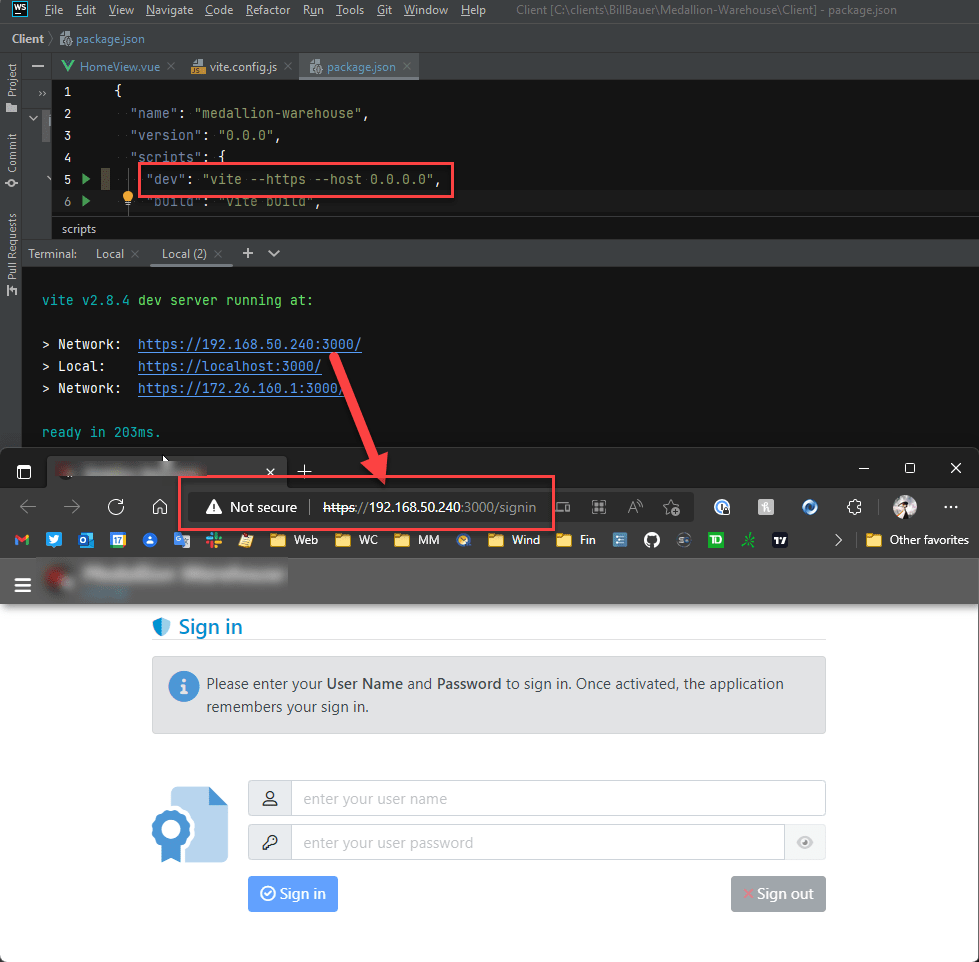
So that's one way around this problem: Using http://192.168.50.240:3000 lets me get past the invalid HTTP certificate.
That makes perfect fucking sense, doesn't it? localhost - nope, 192.168.50.240 - yep. Brilliant!
thisisunsafe Security ByPass Hack
The next hack is a weird one: If you get a security dialog that you cannot bypass like the one above for localhost and https:// access with a certificate error in Edge, you can type thisisunsafe anywhere in the active browser window's Viewport.
If I do this I get through and now get the page to display with the broken https://localhost:3000 link in the address bar (ie. same behavior as with the dedicated IP Address except it now works with localhost):
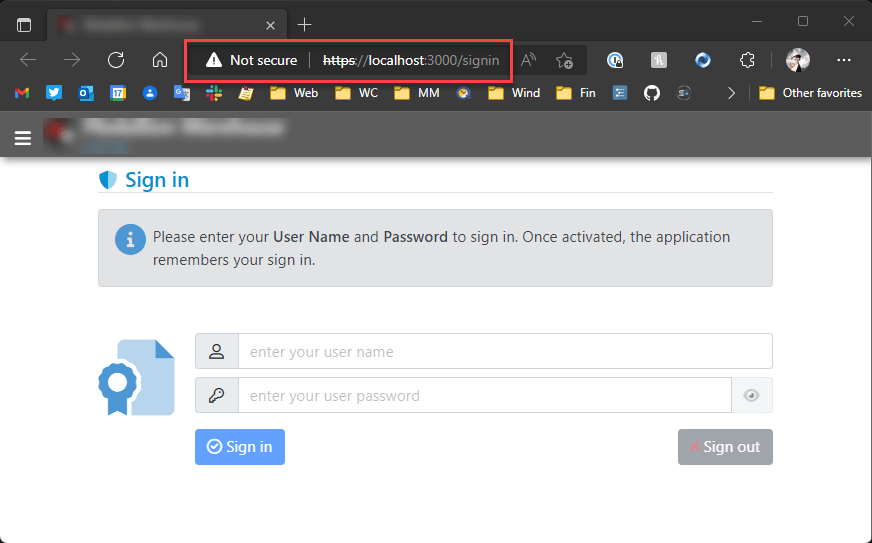
Once you've done this the security setting is cached for some time so repeated restarts of the browser continue to bring up the page without the warning page. Note you still get the broken security lock (or whatever iconry your browser uses).
It works, but man, that is one hell of a hack!

Vue/Vite Specific: Use vite-plugin-mkcert
The next solution is probably the appropriate one to use, which is: Use a valid certificate!
There are lots of ways to do this, and you may already have a valid localhost certificate on your machine for IIS Express or for the ASP.NET Dev server that you could export and make available to another dev server like Vite for example. Not exactly simple especially if like me you're not very certificate-management-savvy and falter over certificate types and conversions.
Creating a certificate is easier said than done on Windows, where it's a major pain to create a new certificate and install it. But even on other platforms you have to do finger gymnastics with the SSH command to create or export a certificate and then use it with the server.
Luckily for the Vue application there's an easier way: There's a mkcert plugin that handles the entire process of creating a certificate, putting it in the local store, and automatically loading it when the server starts up.
The plug-in is called vite-plugin-mkcert and it creates and automatically installs a local dev certificate for localhost. You can install from NPM:
npm i vite-plugin-makecert -d
Then add the plugin config to the vite.config file:
import {fileURLToPath, URL} from 'url'

import {defineConfig} from 'vite'
import vue from '@vitejs/plugin-vue'

// *** THIS
import mkcert from 'vite-plugin-mkcert'

// https://vitejs.dev/config/
export default defineConfig({
  plugins: [
    vue(),
    // *** THIS
    mkcert()
  ],
  server: { https: true },  // *** THIS or use --https on the command line
  resolve: {
    alias: {
      '@': fileURLToPath(new URL('./src', import.meta.url))
    },
  }
})
With the installed certificate, I now get a clean https:// Url in the browser, regardless which browser I use. Here's Edge:
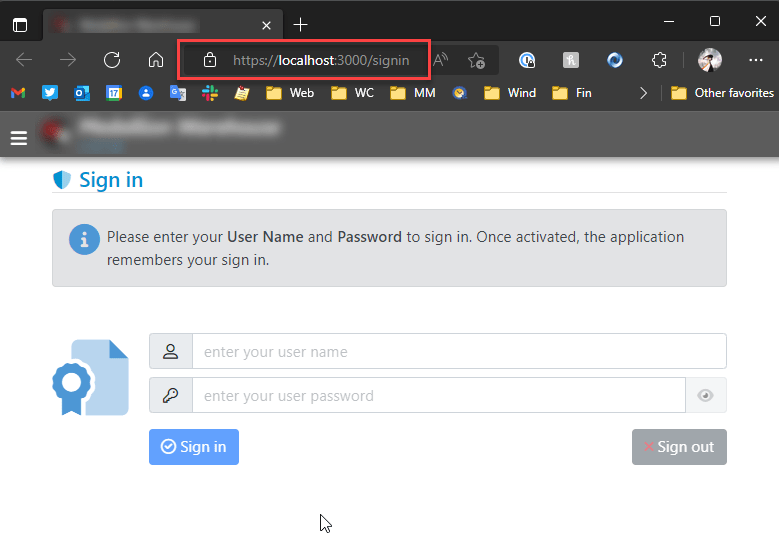
This solution is Vite specific, but there are similar plug-ins for other dev pipelines like the Angular CLI etc.
Creating, and using a local client certificate that is trusted locally is the proper, puppy friendly way to handle local https:// certificates. No more warnings. So yay!
Another Option: LetsEncrypt and a local Web exposed domain name
Certificates don't need to be local client certificates of course - if you can tunnel to your local machine from the public Internet and map a domain name, you can also take advantage of standard public certificates like those created by LetsEncrypt.
I've used this approach in the past with my local 443 port mapped from the router to my dev machine and then mapping DNS to the router IP. Or you can use a dyanmic DNS service that does soemthing similar. Public DNS accessallows Web access to the machine and subsequently you can also register a public certificate that is Web verified.
Once the domain is Web visible, you can then use LetsEncrypt to create a public certificate and use that in the server configuration.
This is a bit of work, but is actually quite useful for quite a few different scenarios including easier testing with mobile devices which can then use a simple DNS name to find the local server without explicitly entering IP Addresses through a phone DNS entry app.
Summary
So in summary Edge is being relentlessly Edgy with https:// requests on localhost, more so than other Chromium browsers. The two problems are:
- Always redirecting to
http://linkshttps:// - Not allowing to bypass
https://certificate errors on localhost
The former problem as described was due to the HSTS caching for the local domain and can be fixed by clearing the HSTS cache in the chrome://net-internals/#hsts settings. If you don't explicitly need https:// in your local Web application this is by far the least painful approach. However, if you're like me and you're running literally a dozen different applications on your machine - you likely will have a few that use HSTS so you'll continue to run into that nasty issue and will continually chase down the cache clearing which is hardly a solution.
So for me at least making https:// work is probably the best idea.
For getting https:// working, here's a summary of the work arounds discussed in this post:
- Use a different Chromium browser for
localhostand bypasshttps://warning - Use a local fixed IP address in Edge (ie.
192.168.xxx.xxx) and bypasshttps://warning - Use
thisisunsafetrick (type into browser) and bypasshttps://warning - Create a self-signed certificate for localhost and register with your server
- Map localhost to a Web accessible domain and install a LetsEncrypt Certificate
- Use a tooling plug-in to create and install a local self-signed cert (ie.
vite-plugin-mkcert)
For me #6 was ultimately the cleanest, which works for the application I'm working on, but it's a specific solution to the Vue project I'm working on at the moment.
I've used #5 on quite a few occasions and that works well too if you can map a local IP or use dynamic DNS of some sort.
Onwards...
 this post created and published with the
Markdown Monster Editor
this post created and published with the
Markdown Monster Editor
Other Posts you might also like
The Voices of Reason

# re: Work around localhost unsecured HTTPS access for Development Sites in Edge
@Thom - great tip - I have to try this with WinAcme... that would be a great and relatively easy way to create a local development certificate in general.

# re: Work around localhost unsecured HTTPS access for Development Sites in Edge
HSTS headers should not be cached and certainly not beyond the scope of the active session
Actually, this is kind of the point of HSTS... It ensures the website is always accessed via HTTPS after the first visit (or even for the first visit thanks to HSTS Preload list). But maybe there should be an exception for locahost, since it's typically used for development purposes...
# re: Work around localhost unsecured HTTPS access for Development Sites in Edge
@Thomas - That seems unnecessary since the app can respond on first hit with an HSTS header and redirect. I get the immediate redirect is one extra step for potential attack vector, but there will always be at least 1 first request against the site anyway, so that risk is always there regardless of the caching.
Agreed though - I think the only place where this is really an issue these days is for a local dev site. So it sure would make sense for HSTS perhaps to be more lenient on local machine IP addresses (or even just localhost).

# re: Work around localhost unsecured HTTPS access for Development Sites in Edge
I tend to avoid localhost if possible, and prefer a local.domain.com approach (inline with test.domain.com, staging.domain.com, www.domain.com, etc.
To that end, I created my own Certificate Authority (CA) using OpenSSL and have a powershell script for easily generating and installing certificates on my development box.
# re: Work around localhost unsecured HTTPS access for Development Sites in Edge
Another workaround using LetsEncrypt that doesn't involve tunneling to your local site, as long as you have access to the DNS for a site: let's say you're developing for a public site named www.whatever.com. Create a local development site with the URL development.whatever.com. Then use LetsEncrypt verification method of looking up a specific TXT record for the subdomain. When LetsEncrypt prompts you to add the specific txt string to the TXT record for the site's DNS, do so. It'll then add the SSL cert to your local site without ever having to allow external access to the site. I use https://www.win-acme.com/ to do this, but I suspect other methods might also support this.